Optimize WordPress Performance with FastCGI Cache on Nginx
Learn how to improve WordPress speed and scalability using FastCGI cache with Nginx. Includes practical configuration examples, optimization tips, and useful server commands.
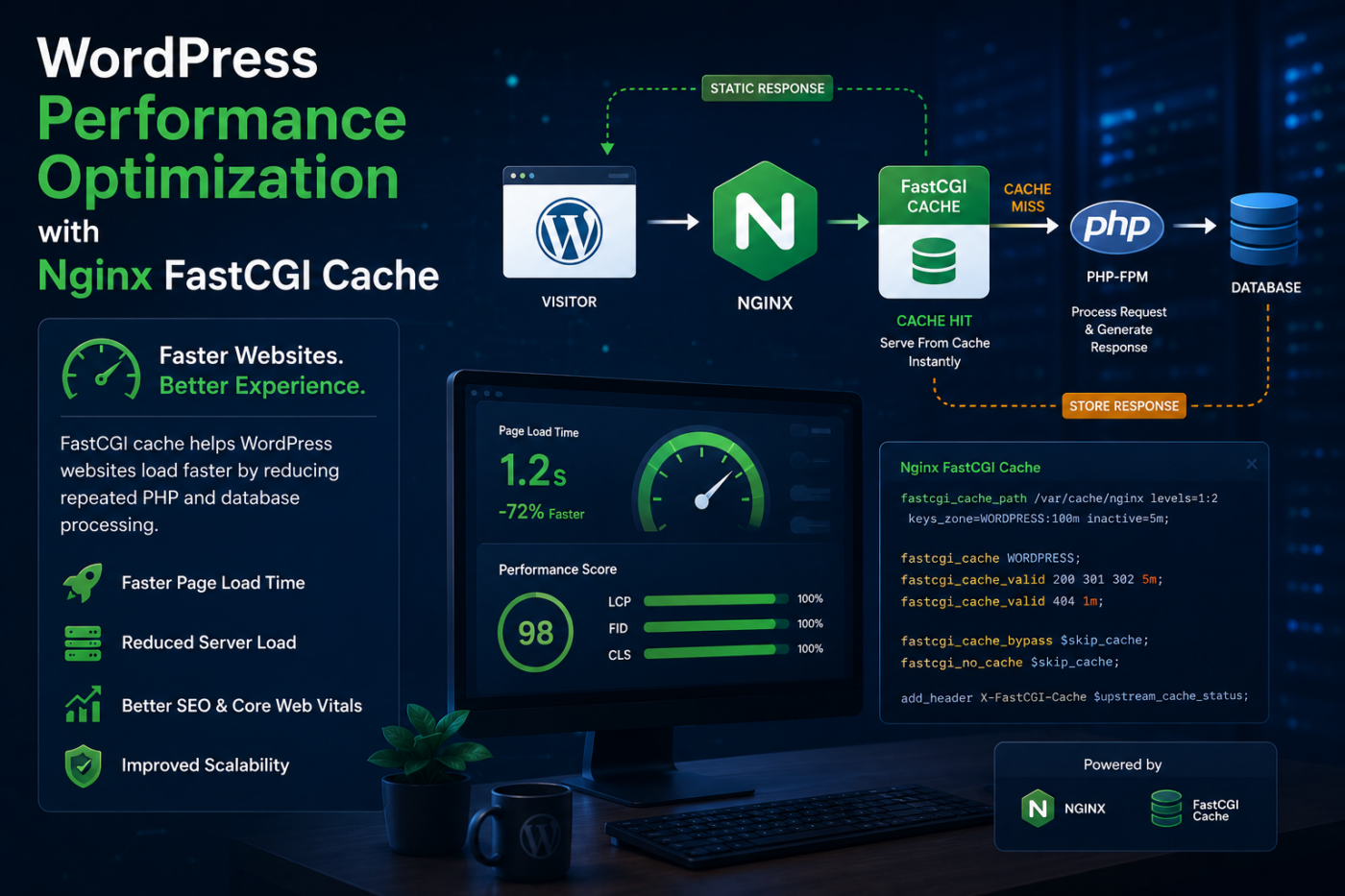
Introduction
Website performance directly affects user experience, SEO rankings, conversion rates, and overall business growth. For WordPress websites handling growing traffic, relying entirely on PHP and MySQL for every page request can quickly become inefficient.
One of the most effective ways to improve WordPress performance on Nginx servers is by using FastCGI Cache.
FastCGI caching allows Nginx to store generated page responses and serve them instantly without repeatedly processing PHP scripts. This significantly reduces server load and improves response times.
For businesses building scalable digital platforms, e-commerce stores, SaaS products, or AI-powered web applications, FastCGI cache creates a strong performance foundation that supports long-term growth.
Why FastCGI Cache Matters
Faster Page Load Speeds
Instead of generating WordPress pages dynamically for every visitor, Nginx serves cached HTML responses directly.
Benefits include:
- Faster website loading
- Lower TTFB
- Improved Core Web Vitals
- Better mobile performance
Reduced Server Load
WordPress depends heavily on PHP and database queries. Under high traffic, this increases CPU and RAM usage.
FastCGI cache reduces:
- PHP execution
- Database requests
- Server resource consumption
This allows smaller servers to handle more traffic efficiently.
Better SEO and User Experience
Fast websites create better user experiences. They can also improve engagement, reduce bounce rates, and support better search performance.
Google also prioritizes fast-loading websites, making performance optimization an important part of long-term SEO strategy.
Stronger Foundation for AI and Automation
Modern websites often integrate AI chatbots, automation tools, recommendation systems, and API-driven workflows. FastCGI cache helps keep the main website fast while these dynamic systems run in the background.
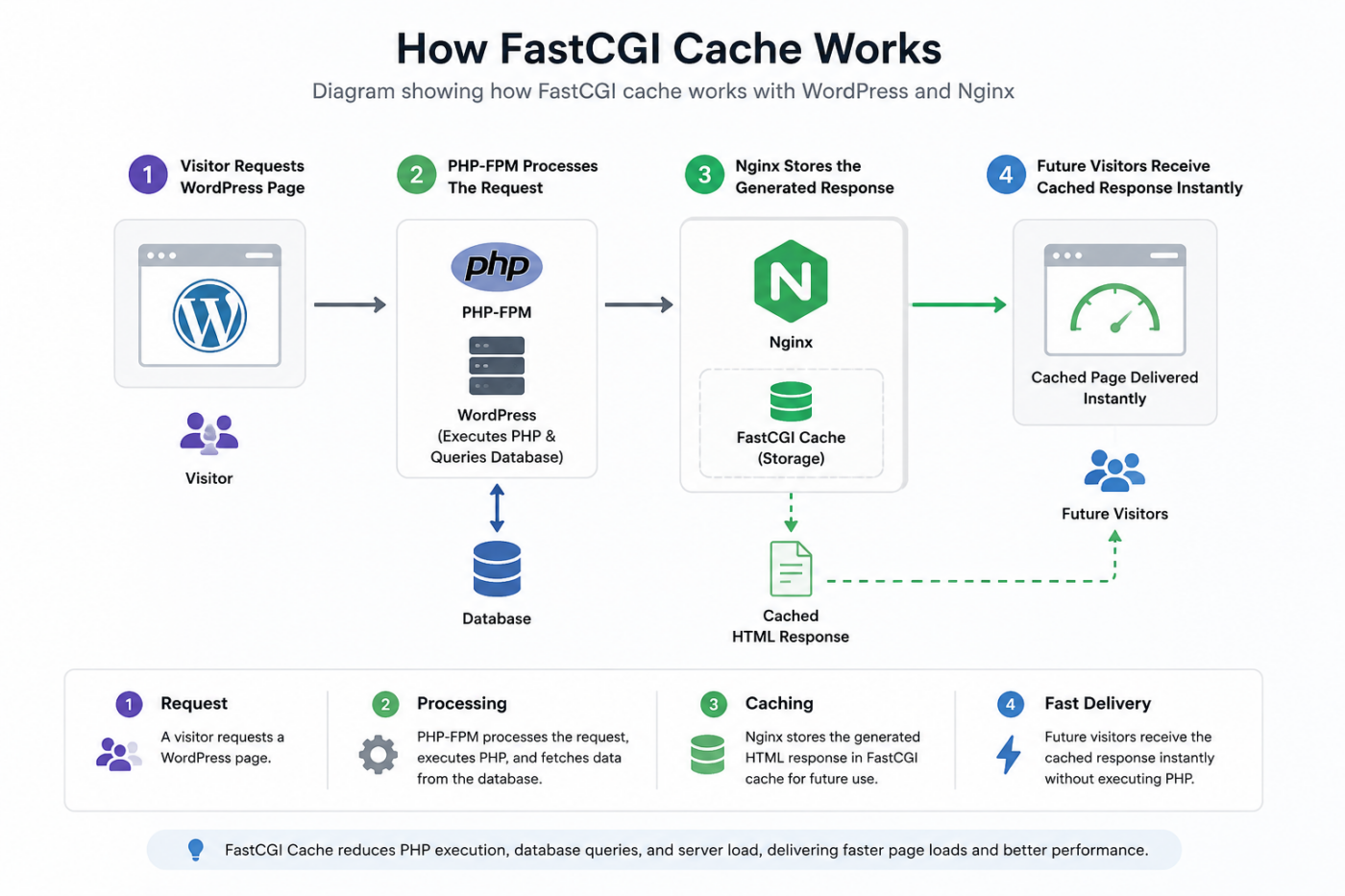
How FastCGI Cache Works
Here’s a simple workflow:
- A visitor requests a WordPress page.
- PHP-FPM processes the request.
- Nginx stores the generated response.
- Future visitors receive the cached version instantly.
Instead of repeatedly generating the same page, the server reuses stored output.
Basic FastCGI Cache Configuration
Step 1 — Define Cache Path
Add this inside the main http block of your Nginx configuration:
1fastcgi_cache_path /var/cache/nginx/example.com levels=1:2 keys_zone=EXAMPLE_WP:100m inactive=5m use_temp_path=off;What This Means
keys_zone=EXAMPLE_WP:100mallocates memory for cache metadata.inactive=5mremoves cached files that are not accessed within 5 minutes.levels=1:2organizes cached files efficiently on disk.use_temp_path=offwrites cache files directly to the cache path.
Step 2 — Enable Cache Inside Your WordPress PHP Block
Inside your WordPress PHP location block, add:
1fastcgi_cache EXAMPLE_WP;2fastcgi_cache_valid 200 301 302 5m;3fastcgi_cache_valid 404 1m;What This Does
- Caches successful responses for 5 minutes.
- Caches redirects for 5 minutes.
- Caches 404 pages for 1 minute.
- Reduces repeated PHP and database processing.
Step 3 — Add Cache Bypass Rules
You should avoid caching admin pages, logged-in sessions, POST requests, and dynamic URLs.
1set $skip_cache 0;2 3if ($request_method = POST) {4 set $skip_cache 1;5}6 7if ($query_string != "") {8 set $skip_cache 1;9}10 11if ($request_uri ~* "/wp-admin/|/xmlrpc.php|wp-.*.php|/feed/|index.php") {12 set $skip_cache 1;13}14 15if ($http_cookie ~* "comment_author|wordpress_[a-f0-9]+|wp-postpass|wordpress_logged_in") {16 set $skip_cache 1;17}Then apply the bypass condition:
1fastcgi_cache_bypass $skip_cache;2fastcgi_no_cache $skip_cache;This ensures dynamic or authenticated sessions are not cached incorrectly.
Step 4 — Add Cache Status Header
This header helps you confirm whether a page is served from cache.
1add_header X-FastCGI-Cache $upstream_cache_status;Possible results:
HITmeans the page was served from cache.MISSmeans the page was not found in cache.BYPASSmeans cache was skipped intentionally.EXPIREDmeans the cached page expired and was regenerated.
Useful Server Commands
Check Nginx Configuration
$sudo nginx -tReload Nginx
$sudo systemctl reload nginxRestart Nginx
$sudo systemctl restart nginxCheck Website Cache Header
$curl -I https://example.comYou should look for a response like this:
1X-FastCGI-Cache: HITPurge FastCGI Cache Manually
$sudo rm -rf /var/cache/nginx/example.com/*Monitor Nginx Logs
$sudo tail -f /var/log/nginx/access.logMonitor Nginx Error Logs
$sudo tail -f /var/log/nginx/error.logCheck PHP-FPM Status
$sudo systemctl status php8.2-fpmRestart PHP-FPM
$sudo systemctl restart php8.2-fpmReplace php8.2-fpm with your installed PHP-FPM version if needed.
Practical Example
Imagine an e-commerce website receiving thousands of daily visitors.
Without caching:
- Every visitor triggers PHP execution.
- Database queries run repeatedly.
- Server resources increase under traffic.
- Pages load slower during peak hours.
With FastCGI cache:
- Product and content pages load faster.
- CPU usage decreases.
- The server handles more concurrent users.
- User experience improves significantly.
Depending on server setup and website optimization, cached pages can often load much faster than fully dynamic pages.
Common Mistakes to Avoid
Caching Logged-In Users
Never cache:
- WordPress admin pages
- WooCommerce cart pages
- WooCommerce checkout pages
- My Account pages
- Membership dashboards
- Logged-in user sessions
Caching these pages can show incorrect user-specific content.
Not Purging Cache After Updates
If cache is not cleared after content or design updates, visitors may continue seeing outdated pages.
Overly Long Cache Expiry
Very long cache durations can improve speed but reduce content freshness. For many WordPress websites, 5 to 15 minutes is a practical starting point.
Ignoring Mobile Optimization
Caching improves server response time, but it does not replace proper frontend optimization.
You should also use:
- Image compression
- Lazy loading
- Responsive design
- CDN delivery
- Optimized CSS and JavaScript
Weak PHP-FPM Configuration
FastCGI cache reduces PHP load, but PHP-FPM still needs proper tuning for uncached and dynamic requests.
FAQ
What is FastCGI cache?
FastCGI cache stores generated PHP responses as static content so Nginx can serve pages without executing PHP every time.
Is FastCGI cache better than WordPress cache plugins?
In many cases, yes. Server-level caching is usually faster because it works before WordPress and PHP are fully loaded.
Can FastCGI cache work with WooCommerce?
Yes, but cart, checkout, account, and logged-in pages must bypass cache properly.
How long should FastCGI cache last?
It depends on the website. A 5 to 15 minute cache duration is often a good balance between speed and freshness.
How can I confirm FastCGI cache is working?
Use this command:
$curl -I https://example.comThen check for:
1X-FastCGI-Cache: HITFinal Thoughts
FastCGI cache is one of the most effective ways to improve WordPress performance on Nginx. It reduces server load, improves page speed, and creates a scalable foundation for growing websites.
When configured carefully, it can help businesses deliver faster digital experiences while reducing infrastructure strain.
At CodeHills, we help businesses optimize WordPress infrastructure, backend systems, cloud environments, and AI-powered digital platforms for long-term scalability and performance. Whether you are scaling a content platform, SaaS product, or high-traffic business website, efficient server architecture plays a critical role in sustainable growth.
Ready to turn this idea into a working system?
Share your goals, workflow, or product challenge. We will review the details and recommend the most practical next step.
Discussion
Share your thoughts, questions, or practical experience below.
No comments yet. Be the first to share a thoughtful question or perspective.